
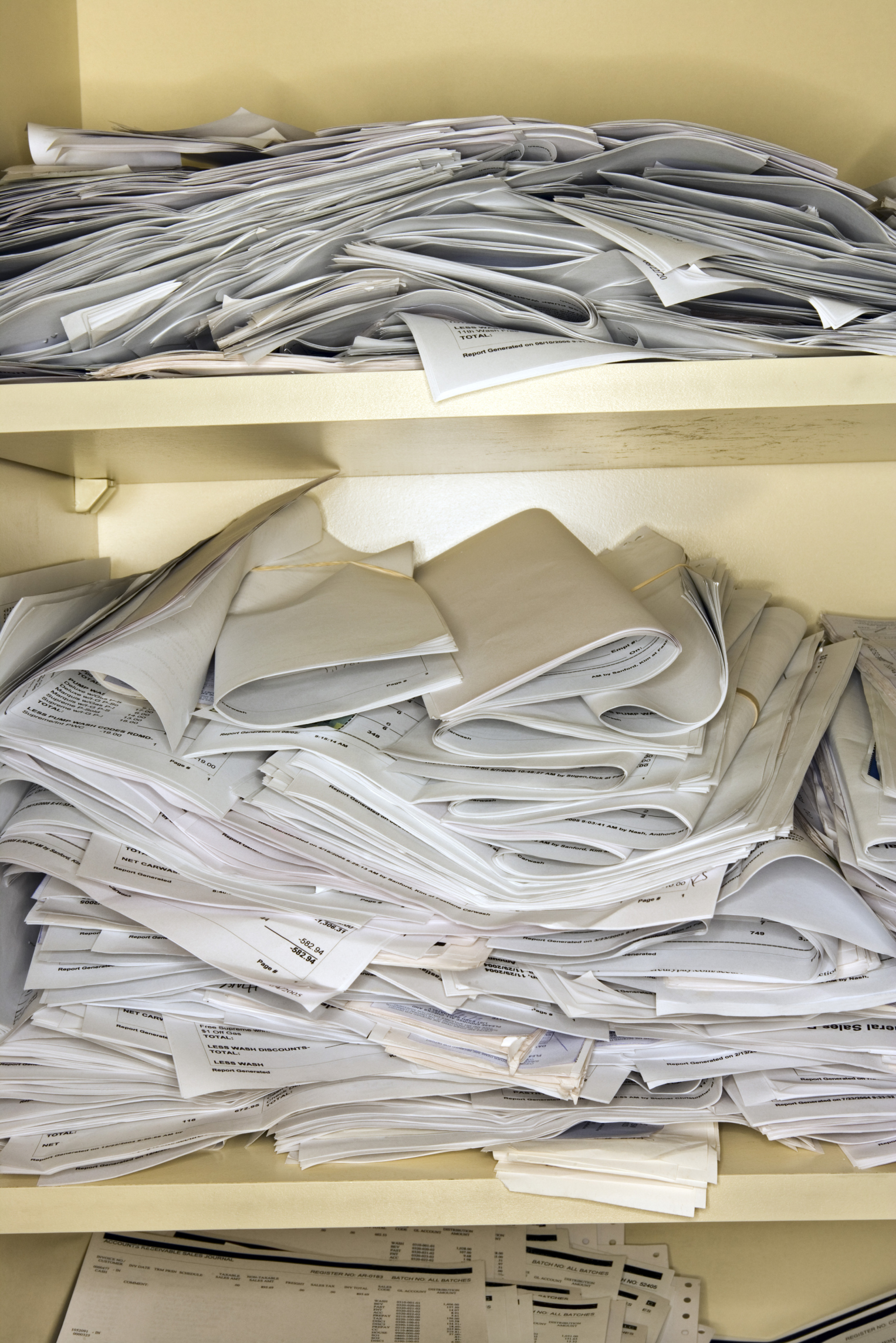
Here at Paper Tiger, we’ve figured out that organization also comes from within, and we believe that you can train yourself to be more organized. Before you begin to use Paper Tiger Filing System Software for Document Management or Digital Tiger, powered by Google Docs, you, try these ten tips that will help you form habits towards a more organized you.
Anne McGurty, a Paper Tiger Expert of Strategize and Organize, shares her top ten tips for using the Paper Tiger to get organized, work efficiently, and be more productive. Read on to see how a small investment in time implementing Paper Tiger Filing System Software can help you to simplify your life!

Did you know that the average executive spends six weeks per year retrieving or replacing lost documents? Naturally, it makes sense to create a system that is quick and easy so you can save that lost time. Here are some ideas to get it done now once you have Paper Tiger. If you don’t have Paper Tiger now, click this link to get started. Here are the top ten tips I recommend:
1. Look at the “hot spot of files”. You know the pile that seems the most urgent and makes your stomach churn every time you look at it. Take the paperwork and make a decision on each piece and separate into four piles:
a. Reference: those items you need, just not right now
b. Action: current projects, ongoing projects
c. Toss: you know where those are going
d. Timed: you need these on a specific date
2. When deciding on whether to file something or throw it away, ask yourself how difficult would it be to find this information again? Does it have any legal or financial ramifications if you were to throw it away? If you can live with the answer of throwing it away after those thoughts, let it go.
3. Set up the Paper Tiger Filing System Software and Document Management, an indexing system that works like a search engine for paper files to help you get organized and stay organized. It’s essentially creating an inventory for all of your files.
4. Use names that you will be able to recall easily. The obvious file names that you’ve used in the past. Then the interesting thing with Paper Tiger is that you will also be able to add keywords into the database so that any name you think of when you need to find a file, the software will be able to tell you where it is in seconds. So in the case of “Auto” the item name would be “Ford Explorer”, and in the keywords section, you would input the name of the company, i.e., “Vehicle, Car”, possible the name of the dealer, the service person’s name, etc., and you might use “Personal” in the Category section.
5. Oftentimes, people receive notices of an event and they never know what to do with the postcard. Set up a monthly filing system (a Tickler File) to keep track of when to throw them away. Create 12 hanging file folders, one for each month. As you rsvp or pull the information for “dress code” or directions. When the day rolls around, you can retrieve it for a reminder. This will ensure that you never miss an event or an expiration date on an rsvp or offer.
6. When sorting through paper files, make a decision. If you’re not in a decision-making mood, have a place set up for “unprocessed paperwork.” Then when you’re ready, if you need to take action, do it now or place it in the appropriate action file. If someone else needs to attend to it, give it to them. If it is something to reference later on, index the appropriate keywords into Paper Tiger and add it to the corresponding reference hanging file. Putting it back in the pile to address later is no longer an option for you as an organized person.
7. When you have a lot of tasks to do for the day, quickly sort the tasks in order of importance. Do what is most profitable or important to you first, then move on from there. Therefore, if you only have a little bit of time, you will be addressing the most critical issues first. All other tasks need to be scheduled for when it makes sense. This final step is critical, otherwise you’ll be starting a new pile.
8. Print out reports of what you have inventoried in your filing system, place a folder in the front of each file drawer, as appropriate, labeled “File Index.” Having a quick and easy reference when you don’t want to open your computer makes it easier to find quickly.
9. Get into a maintenance habit of printing out a ‘File Cleanout’ report of all of your files, quarterly or no less often than annually, and identify what you no longer need and purge or create steps to archive via off site store or scanning.
10. Finally, create a time management habit. Take 10-15 minutes every morning looking at your priorities, including your Actions within your Paper Tiger system and pulling files from your Tickler File. Do the same thing each evening by placing all documents collected through the day back into your systems.
Celebrate your progress, if you haven’t done it yet. Set up your Paper Tiger Filing System and get started now. As you go throughout your day, keep in mind the task at hand and focus on completing that one task. Remember that “things don’t clutter, people clutter”. When we make simple decisions and take action, we can improve the quality of our life at work and at home.
Anne McGurty
About Anne:
Anne McGurty is CEO of Strategize & Organize, a company devoted to training individual’s to be more effective with the tools and resources so they can be productive in their work environment.
If you like this issue, you’ll love Anne’s transforming productivity training and organizing products to help you organize your business — and yourself — ranging from productivity consulting for individuals and executives to small business coaching programs to keynote speaking and corporate training programs to improve efficiencies in the workplace and improve productivity.
While Anne is best known for her expertise in productivity and expert office organizing, her clients share that her biggest impact comes from her philosophy of “personalizing her programs to fit the needs of her clients so they can streamline more efficiently with existing processes” – ensuring to create a sustainable work environment. This, Anne says, is the most important key to bringing an individual to personal freedom with time and organization.
You can learn more about Anne at www.StrategizeAndOrganize.com.


Earth Day is Monday, April 22nd, and each year individuals across the globe participate in events geared towards environmental protection. Wouldn’t you like to get involved?
According to the Environmental Protection Agency (EPA), each year in the United States, Americans use about 71 million tons of paper and paperboard. Many organizations and individuals are making an effort to go paperless. A paperless environment is certainly good for the Earth as the amount of waste in the landfill is reduced in addition to greenhouse gas emissions and the energy used by printers.
Whether you are trying to go paperless or not, most of us still have some paper files, but we can still work toward less paper. Here are a few tips to help you be more environmental, and don’t forget to index the hard copy paper files into Paper Tiger filing system software for document management, so that when you need to retrieve a document, you can find it without having to print it again.
Here are just a few benefits of using Google Docs/Drive that can help you participate in Earth Day this year.
-Google Docs allows you to access your word processed files, spreadsheets and presentations. You can easily share these files with others. You can edit and work on these documents in the same location they are stored in. This can all be done without ever having a physical sheet of paper. The only time physical documents are involved is if you must first scan them into Google Docs. Sometimes you might need a hard copy in file, but also an electronic file. Using Digital Tiger, powered by Google Docs, function in Paper Tiger Online Basic or Pro plan, will allow you to index the physical paper file into Paper Tiger and also search Google Docs for the digital file.
-Google Docs has one of the cheapest digital file storage available. This means you can create and store all of your files digitally without physical paper clutter while also saving valuable space on your hard drive.
-Worried about the safety of your documents? While Google Docs is very secure, you have the option to send automated backups to your computer and also synchronize through Google Drive.
You can easily do your part to reduce your paper footprint by rethinking how you work with paper files and digital files. These tips can help you do your part in keeping the environment healthy. Whether you have digital files or hard copy paper files, you can easily do your part by reducing paper use for Earth Day.

Tuesday, March 12, 2013 was National Organize Your Home Office Day, but here at Paper Tiger we like to designate the whole month of March for organizing your home office (besides, who do you know that can organize an entire office in one day?) With people working from home and diving into self-employment, home offices are quite common. It has been said that at least one in four households have a home office. With clutter on the kitchen counter, dining room table and other areas of the house, this day in particular is designated to getting the office organized.
We know this isn’t a task that can be tackled in one day, but with Paper Tiger Filing System Software for Document Management, we have a few tips that can help you make huge strides.
Optional: Since you are cleaning out your office, you might as well make sure that you are not storing documents that you no longer need or use. Your organizing system needs to be organized as well. (Surely you remember how you can’t be clean on the outside unless you’re clean on the inside). You can print the Paper Tiger File Clean-Out Guide to help you clean out papers from existing files. Also use the Transfer Report to help you physically move documents from one location to another so that your physical hanging file folders matches what you have in Paper Tiger.
These are just steps to help you get started. Of course, it would be quite difficult to clean out an entire home office in one day. Completing one of these steps a day (in order of course) can ensure a clean and tidy office in a week. Remember to relax and take your time when cleaning your office. Don’t get overwhelmed in organizing your home office. You’ll be so proud, you will want to go from room to room. Happy Organizing!

Tidy Tiger Solutions, Michelle Panzlaff, a Professional Organizer and one of our Certified Paper Tiger Experts, has found a way to combine the functionality of the powerful indexing systems in Paper Tiger Filing System Software for Document Management with the concepts provided by Productivity Guru, David Allen, in his world famous GTD (Getting Things Done) Systems.
If you’re a fan of these two powerful organizing tools and systems, you’ll be fascinated by this option. This kind of organizing of tasks can also be formatted to help your staff and team to manage tasks, especially if you are already using Paper Tiger to organize your information and paperwork.
Whatever task or list management system you may be using, this video may help you find new and effective ways to organize your lists. Watch now as Michelle demonstrates how.
Have you lost the ability to be creative, tired of losing important records, and is a growing list of demands getting the better of you, or those around you? Are you ready for a change and want to break the cycle?
If you are seeking some calm in your life and work, have piles of paper that need to be organized effectively, or even if you have some big projects you want help getting launched, you came to the right place.
Professional Organizers are here to help. You are not alone in your challenge to keep clutter and overwhelm from getting in the way of your higher purpose. You can have an effective work space and home you love.
We know that the world today is changing fast, and things are flying in at high speed. It’s no wonder that many of our clients are getting a little behind. There is no one to blame, as life is dynamic.
We all know that clutter can get in the way of success and happiness, and for those that want help to organize, we can help. We bring the know-how, the tools, the resources and the passion for the work at hand.
You, your staff, even your family can work less, earn more and be more productive. Enjoy a streamlined home and office so you can get back to taking care of what really matters.
Professional Organizer in Canada, Michelle Panzlaff created this video to provide you with more information and to help you achieve your goals.
Learn more about the services provided by Michelle Panzlaff and Tidy Tiger Solutions by visiting www.tidytiger.biz today.
Plus, drop into the home page of Tidy Tiger Solutions for free printable gifts and more for your home, work or personal organizing needs.
~~~~~~~~~~~~~~~~~~~~~~~~~~
Tidy Tiger Solutions
Michelle Panzlaff
To Michelle, serving as a Professional Organizer is all about creating more functional and enjoyable spaces, productive workflow and effective filing systems, while helping clients feel inspired and more productive.
As a skilled professional, Michelle now possesses over 23 years of office, service and administrative experience. Michelle relies on her exceptional skill set to solve complex challenges for her residential and business clients alike.
Phone: (778) 866-6942
Email: info@tidytiger.biz
Thanks to Roberta Lile-Lindsey of Kentucky for submitting this article on how she uses Paper Tiger Filing System Software for Document Management, and how much the software has helped her, especially since an accident left her with a brain injury. We wish Roberta continued recovery in her health and improved memory.
Read on to see how Paper Tiger has helped Roberta get organized and be able to retrieve what she needs even with long-term and short-term memory loss. This shows how important it is to get organized without delay while healthy, because you never know what tomorrow will bring in your life.

by Roberta Lile-Lindsey
I purchased Paper Tiger Professional 4.1 Desktop Version a few years ago after I got married and needed to consolidate all of my paperwork with that of my husband. My main use, of course, is for my filing cabinet, which contains active content and what I call ‘ancient’ archive content. You never know when you might need to use some of this ‘ancient’ content for present use; personal or business.
We were both very busy at the time I purchased Paper Tiger. My husband was working full-time and I was a full-time student and mother of two. We had just bought and remodeled our home. We did all of the work ourselves. So, you can imagine how busy and tired we were.
Using Paper Tiger was very easy and self-explanatory. I not only used it for my filing cabinet but I also have used it for organizing my closets that have both of our past memorabilia stored. All I have to do is open up Paper Tiger and I can find all of my important files or memorabilia.
I have always tried to be organized but what I did not know at the time of my purchase of Paper Tiger was how vital its use would become.
On August 13th, 2012, my husband and I were involved in a car accident. We were rear-ended by a teenage boy who was driving on a suspended license. That Monday was the first day of our vacation and we were only a few miles from our home when the wreck occurred.
The car sustained minor damage; however, I suffered a Mild Traumatic Brain Injury and Whip Lash. Among other injuries, I lost my long-term and short-term memory. Needless to say, with the pain and memory loss, my everyday living was and has been very difficult.
Not long after the accident, I received a call from my daughter needing some important information that normally I would be able to tell her from my memory. I could not remember the information that she needed; however, I did remember that I had Paper Tiger on my computer. I told her I would have to look up the information, IF I had filed it and I would tell her what she needed to know.
Thankfully, I was able to open Paper Tiger and look-up the information that she needed, call her back and give it to her. I was so relieved that I had organized all of my important files and at-a-glance can find everything that I need in spite of my long-term and short-term memory loss!!
I have started searching my family history after the accident in order to improve my memory and cognitive skills and once I feel better, I plan on adding those files to Paper Tiger also.
I continually use Paper Tiger to find and archive paper files, memorabilia, photos, Christmas decorations and the list could go on-and-on.
Winning an Apple iPad at this point and time could really improve my chance for a full recovery, as there are many apps available for traumatic brain injury patients, such as myself. I follow brainline.org and there are some fantastic Life-Changing iPad apps for people with brain injury.
Daily life continues to be a struggle even after six months of recovery time. I am so thankful to have Paper Tiger to make my life more organized and less stressful!
Sherry Borsheim, a Paper Tiger Expert of Simply Productive, has offered some great tips on staying organized while traveling for business so that when you’re back to your office, you won’t have a lot of ‘briefcase drama’ nor will you have a stack of papers to fumble through. You’ll be able to index them into your Paper Tiger database, and file as you’ve already noted.

Conquer Your Paper Chaos When You Travel
Has this ever happened to you? You’ve just returned from a business trip and your briefcase is bulging with receipts, meeting notes, business cards, travel documents and other essential paperwork. You’ll probably spend your first day back in the office just sorting through the chaotic mass of paper before you can even think about getting down to business!
Or, perhaps you travel all over the city attending one meeting after another. By the end of the day, your briefcase is a pile of to-dos with no particular order. Phone messages are scattered on various pieces of papers and you just know that an important message is hidden somewhere in the mess. Then there are the business cards you collected, some require follow-up, but you’re not sure where you put those important numbers. If only you had kept it in a safe place so you could remember where you put it.
At this point, all those good intentions to take action and follow-up on hot new business leads fizzle into frustration. But there’s no time to think about how you misplaced those essential items. The minute you’re back in the office you find there is a pile of emails waiting for your response, in addition to a large pile of papers on your desk begging for your attention. You dive right in to the emails and before you know it the morning is gone and it’s lunchtime. You work through lunch in order to attack the pile of paper on your desk. Then you realize you reviewed your messages, so you abandon the paper pile and listen to all your messages. It’s a never-ending circle of paper, email and voicemail, and you haven’t even cracked open your briefcase. You just spend the day reacting to emergencies and interruptions with no planned scheduled time to deal with the important issues that you had hoped to get to.
This continues day after day and you’re still dragging all those papers from your business trip in your briefcase and you’ve been adding to it during the week as you attended more meetings. Now you have no idea what’s what and it all melts together into one big mountain of paper begging for your attention. How long do you let this go on before you decide to take action? For some its days and other’s, its weeks or months. Those hot new leads you made on your business trip aren’t so hot now and the longer you leave it, the more you procrastinate on taking action. Eventually you take mountain of paper out of your briefcase and drop it on the floor by your desk and say you’ll deal with it later, because you have more important things to take care of in the office. Guilt sets in and it constantly nags at you to do something but you don’t. You know you should get your business receipts handled but you’re not sure where they all are and it ends up costing you money when you could have been reimbursed.
Here are some tips on how to put an end to the briefcase drama scenario after business travel:
1. Streamline and organize your briefcase so you know what the next action is on any piece of paper and business card while you’re out of town and when you arrive back at your office. Use plastic folders to batch similar tasks together. Remember, ease of access and functionality are very important when using any organizing product.
2. Label the file folders inside your briefcase with the next action you want to take – “Call, Data Entry, Discuss, Receipts, Meeting Notes/Agenda, Photocopy, Read, or Write”. Customize your files based on your specific action steps.
3. How to use your travel briefcase when outside your office. File meeting agendas under the file tab labeled “Meeting Notes/Agenda so when you get to the meeting it’s all together. If you collect business cards during your trip there are two things you can do with the business card: (1) enter it immediately into your Contact List, or (2) file it into your mini travel briefcase under “Data Entry”. When you return to your hotel or your office, any cards that you wanted to get into your Contact List are all grouped together. You can enter them yourself, scan them using an App or delegate the task to someone else.
4. Define the next action. No more putting it aside to deal with it later. This is what I call “deferred decisions”. Instead, ask yourself this very important question: “What is the next action I want to take on this piece of paper?
5. Schedule a specific time in your calendar to handle that next action. This is the key to getting things done. A pile or file labeled “To Do” is only an intention to do something, where as a scheduled appointment is a commitment to take action on something.
6. Use clear project folders to keep like papers together. Use these project folders to keep your agenda and meetings notes together in your mini-travel briefcase or keep them on your iPad using Evernote in a folder called “Agendas”. You may be attending several meetings and these project folders are sure to keep your papers grouped together. Do not use paper clips, they tend to attach to other pieces of paper and get caught on other paper clips.
7. 80/20 Rule – 80 percent of what we file we never refer to again. Therefore, ask yourself, “What is the worst possible case scenario if you tossed this piece of paper away?” If you can live with the results of your answer to this question, then toss the piece of paper.
8. What to file for future reference. If you decided to keep the information on a piece of paper, ask yourself: “If I want to retrieve this information again, what trigger word would you think of?” Write the trigger word on the upper right hand corner of that piece of paper and file it in your briefcase under “File”.
9. Transferring papers when you return. When you return to your office after the business trip or day of meetings, everything that you’ve gathered during your time away from the office is grouped together by the next action. Instead of a mountain of paper spilling out of your briefcase, you’ll be ahead of the paper chase game, because you’ve already defined the next action. All there is for you to do is to schedule time in your calendar to handle the actions in your mini-travel briefcase. Some of the actions like Data Entry, File, and Expense Reimburse you can delegate to your assistant if you have one. That feeling of guilt and shame won’t be there because you’ve handled what you said you would do when you returned to your office. For those papers that you need to file, you can enter the ‘trigger’ word that you’ve already written on the file into your Paper Tiger database, add additional keywords if necessary, and drop the document(s) into the corresponding item number hanging file folder.
Business Travel tips:
Implementing the business travel briefcase will dramatically decrease your stress level and increase your productivity when you return to your office. You’ll turn piles of paper into valuable resources instead of deferred decisions and guilt. Instead of reacting to emergencies, you’ll be proactive on your commitments and follow-up.
~~~~~~~~~~
Sherry Borsheim is the president of Simply Productive. You can visit Sherry, access her free article archive and grab lots of free stuff at http://www.simplyproductive.com. Sherry lives in Vancouver, BC Canada with her husband (her high-school sweetheart).
Contact Sherry for a JUMP-START on ORGANIZING your office, home and life. She will give you her trade secrets and steps to setting up your organizing systems, including recommending Paper Tiger filing system software for document management, to be organized and manage the paper files that you need to keep in hard copy format and other physical stuff in your life.
~~~~~~~~~~~~~~~~~~~~~~~~~~~~~~~~~~~~~~~

The start of a new year just passed and many people vowed to get organized. Why is organization such a big hurdle for people? Below are what we believe to be the top nine reasons people ask for help. In addition, we’ve given clues as to how Paper Tiger can solve each of these problems.
1. Overwhelmed: Have you ever felt so bogged down by clutter that you felt a spout of claustrophobia coming along? Clutter can most certainly become overwhelming, leading to depression and other gloominess. Paper Tiger is the perfect tool to defeat clutter. Instead of watching the papers and documents pile up, Paper Tiger allows you to file away each document and keep track of the exact location while relieving all stress. You won’t have to worry about finding a file again, because you’ll be able to search by any of the keywords you’ve input to find where you’ve filed the document. And Paper Tiger is not just for paper! You can index anything that you can put a number onto, and be able to get organized and clear the clutter.
2. Unawareness: There are always people that wish to get organized, but get hung up because they don’t know how to do it. While some people are natural organizers, others wouldn’t know where to begin. Paper Tiger’s indexing system is so simple to use, anyone can become organized! Filing paper in its original form, you don’t have to worry about the 1 or 2 words that you’d put on the hanging file folder tab because you can add as many keywords as you can think of into Paper Tiger’s database for the documents in your hanging file folders. You can search for whatever keyword that you’re thinking for the file you need to retrieve, and Paper Tiger will let you know where it is in seconds.
3. Lack of Resources: Some people don’t know that there are professional organizers and tools such as Paper Tiger Filing System Software for Document Management to help them get organized. Some jobs require help from others, and these professionals can advise you in just the right tools you need for the way you work and what you have to get organized. Getting organized is surely no easy deed, but knowing what to do, how to do it (a process), and the right tools to use can be what you’ve needed all along. With Paper Tiger, it’s as easy as setting a location, filing documents in that physical location, indexing or naming the items with keywords, and finally searching for the document in the search box. With the stroke of a few keys, Paper Tiger tells you the exact location of your document.
4. Tackling Organization: Many of us may want to start organizing, but can’t figure out what the next step should be. Maybe trying to start with your entire office isn’t the best move, perhaps try to clean the desk first or the bookshelf. Tasks that are too big take us back to being overwhelmed. Paper Tiger can make breaking larger tasks down much easier. Once you have accomplished smaller missions, tackling larger tasks will be a walk in the park.
5. Lack of Time: Time is always the enemy because it stops for no one. We all have busy lives with working each day, cooking dinner, and taking the kids to soccer practice, but we have to make a little time to prevent the accumulation of clutter. Paper Tiger is the best tool for time management. It takes no more that ten seconds to enter the database, file the document in a location and name it! Later on, when you go to search for that document, it takes even less time to type the keywords and let Paper Tiger reveal the precise location.
6. Motivation: Do you need a coach or guidance to help you get organized? Again, there are professional organizers who have been trained in how to do things more efficiently to help others be more productive; and can help you do this by setting milestones and regular check-ups with you. Paper Tiger can also serve as the motivator. Once you use it once and find that the document you filed six months ago is exactly where you left it, Paper Tiger will become your new best friend.
7. Surrounded by Clutter: It’s an awful thing when you tidy something and someone else comes right behind you and creates a mess, isn’t it? Some people get discouraged from organizing because others around them are jumbled. The real beauty of Paper Tiger lies in the keywords. You call it “Nissan car note”, he calls it “car bill” but if all these keywords are saved in Paper Tiger, both parties can find documents with ease. Getting others around you organized will be easy because everyone can still find the documents.
8. Health Concerns: Attention Deficit Hyperactivity Disorder (ADHD) and other disorders can definitely bring organization to a screeching halt. Getting lost in thought and starting tasks but never finishing them can be very frustrating, due to no fault of their own. Attempting to declutter one stack at a time is a great milestone towards getting organized. Paper Tiger allows those unfinished tasks to be filed away for safe keeping until they are ready to be worked on again.
9. Change: We all go through changes. Marriage, new baby, our children will pack up and leave for college or we’ll move. Whatever the case may be, these transitional periods often call for reorganization. Paper Tiger is the perfect tool to help overcome these changes and stay out of the realms of clutter. Use Paper Tiger with storage bins to keep up with items that aren’t needed for immediate use. See just a few things that Paper Tiger can help you organize on our Not Just for Paper webpage at http://thepapertiger.com/tour#4
The struggle to get organized is one that can be conquered with the help of Paper Tiger and/or professional organizers. Virtually any obstacle one encounters when trying to get organized can be solved with Paper Tiger Filing System Software for Document Management. Next time you hit a snag when trying to get organized, think about how Paper Tiger and other organizing resources can help make organization easier.

Each year we hear the same new year’s resolutions over and over again, “I’m going to exercise more this year” or “I’ll be nicer to my family this year” but sadly most of us drop these resolutions within the first ninety days of the year. One of the most popular resolutions that people make is to get organized. The National Association of Professional Organizers (NAPO) caught wind of this and named January “Get Organized Month” or “GO Month”. They started this initiative in 2003 to help people with organization and productivity. According to NAPO, the bulk of their clients request help with organizing their home offices. It’s safe to assume that clients are referring to paper clutter in the office. Paper Tiger Filing System Software is the perfect tool to get 2013 started off on the right foot if you were planning to be more organized this year.
- Efficient: Paper Tiger can help one file and organize all paper and digital files. Once you really catch on to the concept of indexing paper files and setting up locations in your database, you won’t know how you were able to organize without Paper Tiger. And since Paper Tiger isn’t just for paper, imagine all the other rooms of the house that you can organize. Paper Tiger’s basic concepts will help you master the software in a matter of minutes; bringing your organization troubles to an end, making it easy to keep your resolution for the entire year.
- Versatile: Paper Tiger not only helps you to organize and actually find paper files, but with Digital Tiger, powered by Google Docs, you can also find digital files! Using Google Docs as your digital file storage location, you can access scanned documents such as PDFs and also other types of documents. Google Docs gives users five gigabytes of storage free to store your digital files that you want in the cloud. Using Google Docs allows users to easily share digital files and even access them from mobile devices. Digital Tiger is a free add-on with a paid Paper Tiger Online Basic or Pro account for now, and is the function that connects your Paper Tiger Online account to your Google Docs/Google Drive account, then you will be able to search from Paper Tiger to find your paper/physical items that you’ve indexed into Paper Tiger’s database and your digital files that you’ve created, scanned or uploaded to Google Docs format through a Gmail or Google account.
- Practical: Paper Tiger may be one of the best investments ever as far as time is concerned. How much time do you think you waste on average looking for something? Each year people waste hours and entire days looking for something. Experts estimate that people waste 150 hours per year searching for lost items. Calculate your cost of disorganized here. A small investment in Paper Tiger will save not only time but also money. How many times have you paid a bill late because you lost it? Every time a document is filed and indexed into Paper Tiger, you can feel sure that you will be able to find it again quickly and easily. The days of trying to figure out where a document was left are over! With Paper Tiger’s search engine like feature, a few keywords will help you find exactly the document needed.
If organization was at the top of your New Year’s Resolution list, look no further; Paper Tiger is here to help. Its resourceful system will be so easy to use, it will be hard to stop organizing! The ability to organize both digital and paper files will not only clear up clutter on the desk but also inside the computer.
During this “Get Organized Month,” take advantage of the expertise of one of the productivity consultants that are Paper Tiger experts who can help you work more efficiently in every area of your life. They will work with you either virtually or in-person, whichever you need, and will help you to get organized and create a customized system for the way you work.
Finally, all the time and money wasted from disorganization will be returned on your simple investment in Paper Tiger, and you’ll be able to keep at least one new year’s resolution.
Whether you’re just starting a new business or you’ve been in business for years, you will always office organization. Often times, new gadgets come on the market that business owners get talked into purchasing, and these gadgets aren’t really useful in the long run, so money has been wasted. Then, there are other ideas that are helping business owners save heaps of money. One of these ideas is Paper Tiger Filing System Software for office organization, which is being used in companies of all sizes, ages and types. Employees won’t be wasting time searching for paper files when they could be doing things that are much more productive, thus saving companies money while increasing productivity.
Paper Tiger allows companies to maintain their paper files that they need to keep in hard copy format. Keep your paper in its original form (you do not have to scan it), but simply index your paper files into Paper Tiger’s database and use the power of the computer to quickly and easily find the information when you need it. Paper Tiger can index anything; it’s not just document management! Some things just can’t be scanned, i.e., passports, contracts, binders, books, CDs, DVDs, etc. That cannot be done with systems that require scanning into an electronic file. The beauty of Paper Tiger is that keywords allow everyone to find the document that might have been named many ways by many employees.
No matter how large or small a company, time management is a must. After all, when people are wasting time, they aren’t being productive, and the company is not making any money. Searching for files is a huge waste of time, especially when there is Paper Tiger to make the job faster and easier. The less time one has to spend searching for files, the more time can be spent doing things that are actually fruitful. The better you and your employees are at managing time, the more efficient your company. When documents are saved, various keywords are used, granting anyone who has permission easy access just by using certain keywords.
If you want to keep up with the times and make sure that your company is using the most modern paper management techniques, then you need Paper Tiger Filing System Software for office organization. Of all of the office supplies you pay for, this software is one of the most important. In addition, Paper Tiger will virtually return the investment when the time wasted is put towards working! Allow Paper Tiger to help with your office organization to cut back on time and keep your profits up where they should be.

During this webinar, Anne discussed the basic concept of Paper Tiger to organize both paper files and other physical items of which you need to keep track so that you can find them when you need them, and the concept of Digital Tiger, powered by Google Docs to organize and find your digital files. She demonstrated how to use Digital Tiger more effectively for digital filing, in addition to the following to show how to use Paper Tiger with Digital Tiger, so you can get organized and be more productive.
Find Anything In Your Office In 5 Seconds or Less…Guaranteed! Watch the webinar to learn more.
As information, Anne is a professional speaker, productivity expert, professional organizer and author. If you want to learn more about Anne and her services, please visit her website at www.StrategizeAndOrganize.com.
She may be in Colorado (and sometimes in Arizona!), but she’s nationally recognized as an expert and works with people throughout the US in person and virtually.
You can contact Anne at amcgurty@strategizeandorganize.com or by phone at 303 881-0174.
See more information here on Paper Tiger Filing System Software for Document Management
Q: How do you start when all of your files are in drawers and on your desk? It would be helpful to have ideas for where to start – baby steps.
A: We always recommend starting with the files on your desk to get your desk cleared. If you already have files set up, you might start with the drawers in your desk and index each file. We recommend starting with naming your Paper Tiger locations as Action Files, Reference Files, Archive Files. Then you can add other types of files later, such as Binders, Books, CDs, DVDs, etc. Locations could also be an actual physical location, such as File Room, Library, Garage, Basement, Storage, etc. Please take a look at this blog post that we created to help those needing a little guidance that you might find helpful: Customize Your Filing System with Paper Tiger’s Indexing Method
Q: Is there any way to search all of your databases or can you only search them individually?
A: You can only search within the individual database that you’re in at the time. You cannot search across all of your databases. Having different databases is only advantageous if you want to keep different filing systems separate and do not want to search for all files in all databases at one time. For example, if you have an Office database and a Home database, you do not want items to pop up from your Office database when conducting a search for an item in your Home database.
Q: I have several “side jobs” for non profits etc. Do you recommend setting up locations for each type of side job? For example, I have several clients that I work for from home. Should I set up a location for each client? Perhaps it depends on what the physical location is?
A: It does depend on how you want these filed, but think about if you need to have a location for each client. Do you have several manilla folders for each client or do you simply have 1 hanging file folder per client? If you only have 1 hanging file folder per client, create a location named Clients, then 1 item per client. However, if you have several manilla folders for each client, and you don’t want to itemize each manilla folder into 1 item, then you might consider naming a location per client. In this latter case, you might only have 5-10 items in each location, but it would give you more flexibility in differentiating between clients.
Q: If I use the cloud version, vs the desktop version, I could access from multiple PC’s, is that right? e.g. access from home and work
A: Yes, you would be able to sign in from wherever you are with an Internet connection. Paper Tiger Online works on any computer with an Internet access including Mac.
Q: Where do I find the area to change the setting to include digital search? I checked database preferences, but it doesn’t give me that option.
A: You will first need to connect Paper Tiger to your Google account. From the Dashboard, click on the Accounts tab, then find the option to Connect to Google Docs. Please see this blog post that has step by step instructions that you might find helpful: http://www.thepapertiger.com/blog/started-digital-tiger-paper-digital-filing-solution/
Q: Can I attach a picture to an item, specifically, I want to inventory fabric for a small sewing business, pictures or links to pictures in the notes would be helpful.
A: Paper Tiger is an indexing system, and doesn’t allow you to attach an electronic file, however you would be able to upload the picture to Google Drive and title that digital file with keywords. Then with your Paper Tiger Online account connected to your Google account, you would be able to search from Paper Tiger Online and search results will return for both your physical items that you’ve indexed into Paper Tiger and your digital items that you have in your Google Drive. You can also paste the link into the Notes section if you like, however it will not be hyperlink, but you can copy from there if you wish later.

During this webinar, Anne discussed the basic concept of Paper Tiger to organize both paper files and other physical items of which you need to keep track so that you can find them when you need them, and the concept of Digital Tiger, powered by Google Docs to organize and find your digital files. She demonstrated how to use Digital Tiger more effectively for digital filing, in addition to the following to show how to use Paper Tiger with Digital Tiger, so you can get organized and be more productive.
Find Anything In Your Office In 5 Seconds or Less…Guaranteed! Watch the webinar to learn more.
As information, Anne is a professional speaker, productivity expert, professional organizer and author. If you want to learn more about Anne and her services, please visit her website at www.StrategizeAndOrganize.com.
She may be in Colorado (and sometimes in Arizona!), but she’s nationally recognized as an expert and works with people throughout the US in person and virtually.
You can contact Anne at amcgurty@strategizeandorganize.com or by phone at 303 881-0174.
See more information here on Paper Tiger Filing System Software for Document Management
Q: I am very interested in reducing the amount of papers to be filed or that perhaps are not needed at all. What papers are critical to keep, even after scanning them?
A: We have several blog articles under our Category of “Retention Guidelines: How Long Should You Keep Records”
Q: I want help with useful item and category names.
A: See this blog post which contains suggestions for Location names, Item names, as well as Categories: “Customize Your Filing System with Paper Tiger’s Indexing Method.” Hopefully this will be helpful to you.
Q: How do I switch over from the old version and is it hard?
A: After creating your Paper Tiger Online account (Pro or one of the multi-user plans), email support@thepapertiger.com, attach your database(s) and let them know that you need it imported to your online account under which email.
Prior to sending your database, make sure all pending items have been confirmed by clicking the Confirm box, and empty the Trash for each database. Then export your database(s) to .CSV file(s) by following the instructions below for all databases if you have more than one database. To export a Paper Tiger CSV file from Paper Tiger 4:
1. Open Paper Tiger and the appropriate database.
2. From the File menu, select Export.
3. Check the Select All box.
4. Click the Browse button to select the preferred directory so that you will know where the file will be saved to and type in a file name for the CSV file, click the Save or Open button
5. Then attach the .CSV file to your email that you’re sending to our tech support team
Q: What is the difference between paper search to digital search?
A: Paper Tiger searches your paper files that you’ve indexed into Paper Tiger, and the Digital Tiger function allows you to also search your digital files that you have in Google Drive. Digital Tiger is a free add-on with a paid Paper Tiger Online account (Basic and Pro plans for now and then later for multi-users), to connect your Paper Tiger Online account to your Google Drive account, then you will be able to search from one place (Paper Tiger) to find both your paper/physical items that you’ve indexed into Paper Tiger and your digital files that you have in Google Drive. Since Google Drive in this case would be your digital file storage location, you can prepare for Digital Tiger by creating, scanning or uploading your digital files to Google Drive. Again, Paper Tiger is for indexing the paper files that you need to keep in hard copy format and other items, such as passports, instruction booklets, or CDs, DVDs, Books, home or office inventory and/or storage, etc.
Q: Is there a mobile app for Paper Tiger?
A: No we do not have a mobile app for Paper Tiger, but it works well on the iPad and other tablets.
Q: I would like to organize my jewelry, and I have a lot! What do you think the best way would be to do so? I did purchase clear-lidded jewelry boxes and have also taken the photos! I was trying to figure out about the photos. I am thinking of also putting info to Google Doc’s so that I don’t have to store all this information in a drawer.
A: We recommend arranging your jewelry so that you can number each piece, then index each piece in Paper Tiger matching item numbers as you go. You can photograph your jewelry with corresponding numbers, and upload the pictures to Google Drive. Be sure to put keywords in the title of each photo that you upload.
Comment: I love the fact that you have “loaned to Frances” under your keywords for your books. It is way too easy for me to not get borrowed books returned to me. Using your method would help me put a stop to this.
A: Awesome!

The doors to the Fall Semester are groaning towards a close. One of the few times a year that forces most college students to start thinking about the dreaded F word; FINALS. You remember all the essays and term papers you wrote while in college, right? Four or five classes a term meant about ten papers if there were midterms and finals. It’s a liberating sensation to turn in fifteen and twenty page papers after a few fidgety nights chained in the library, but what does one do with the masterpieces after they’ve been graded and returned? Certainly not trash them, at least Shakespeare never did!
How many times have you searched for an old essay, rummaging through countless papers with no success? What are the benefits of keeping term papers following the semester? One might need to glance at that paper next semester for a prompt review. Whatever the reason, it’s often a good idea to keep projects and papers from the previous terms. One never knows when these term papers will come in handy in the working world.
Saving ten papers a semester unquestionably adds up. Reminiscent of a leech, these papers suck up memory on a hard drive and are dispersed throughout a tiny dorm room to add to all the other clutter. After a few weeks of severe procrastinating and searching for last’s semester’s Economics paper, all hope may vanish.
Renewing all hope, both Digital Tiger AND Paper Tiger will eliminate endless stacks of papers as well as the forever-growing pile. The pursuit for past essays will be a trouble-free, effortless and painless one.
With Digital Tiger, powered by Google Drive, digital files are stored in Google Drive. Students will have a variety of options; a hard copy, a digital copy and free space on their hard drive. Google Drive offers the most economical storage options for a college budget, with 100 GB of storage for less than a hamburger and fries! Sharing docs with friends working on the same project will be a cinch. The reliable Google Cloud will store all documents securely. Finally, with the way the zombies — *ahem college students — are glued to their tablets and phones, Google Drive works with mobile devices allowing virtual access to documents anywhere!
And for all the hard copy documents, an online Paper Tiger account takes less than fifteen minutes to set up. Once all the term papers are sorted and ready to be filed, Paper Tiger’s indexing system allows for:
- Organization by subject
- With the keywords section, there’s no need to worry about what name to file under nor do you have to worry about remembering the file name
- Both physical & digital file location search functions
- Printed labels for document identification
After mastering those easy tasks in Paper Tiger Filing System software, Digital Tiger will work just as fast. Have you filed away last semester’s theory essay? Paper Tiger will still allow for physical filing of these final papers, and with the Digital Tiger function, be able to locate both hard copy and digital files relating to the same subject.
With the Digital Tiger and/or Paper Tiger, college students can start the next semester always armed with those valuable papers and projects from the past. With a tidier dorm and more desk space, students can organize essay after essay each semester until graduation. Who knows, maybe grad school is calling their name.

Being a teacher or professor is one of the most important jobs, however, it can be a bit of a challenge to keep everything organized. In order for a teacher to do the most proficient job possible, it is key to have a structured organization system in place. If you are a teacher or professor, you already realize how much there is to keep track of and try to find a way to keep straight.
If you are planning on becoming a teacher or about to graduate and become one, you should have an idea of what to expect. Not only that, but you should also go ahead and plan to implement an indexing filing system in order to have everything make sense, and to start out organized so that you can easily retrieve what you need when you need it without a lengthy search through stacks and stacks of paper files.
In addition, you’ll also have books and notebooks to keep track of and depending on your subject matter, you most likely will have different kinds of supplies that you need to keep track of. All of which can be indexed into Paper Tiger’s filing system software.
Teachers and professors have to come up with lesson plans and keep these on file for years to come. They can refer back to these lesson plans to reuse them throughout the years. Educators must also bring home students’ papers to grade and may sometimes keep copies of these papers to refer to later for various reasons. Teachers also have to give out assignments and may keep track of the assignments they drafted as well as copies of their students’ work. The bottom line is that there is a great deal of paper work involved with being a teacher.
It was once nearly impossible to keep track of all these papers from the past. Filing them under some type of alphabetical system kept them neat, but far from an easy retrieval or finding system. In fact, unless you could remember exactly what you would have filed something under, these filing cabinet drawers and tons of paperwork can be useless. Fortunately, Paper Tiger Filing System Software for document management, an indexing filing system software can help you get your paper files organized and turn your filing system into a ‘finding’ system.
Now you can have your lesson plans, past assignments and tests on file and find them easily. Instead of having them alphabetical when one file could be under several different names or titles, you can simply include any and all keywords that you may use for your files. This is especially important for those who teach more than one subject. Your substitute teachers can also benefit from getting your files organized.
You no longer have to file everything under the title you think you should, which can end up causing duplicate files in some cases when files could be filed under different names. When you want to retrieve something, will you remember if you filed it under H for “History test” or F for “final exam.” In fact, for copies of students’ papers, how could you possibly recall what the title of a student’s paper was from two years prior in case you need to retrieve it again?
Instead, you use keywords, any and all of the keywords and search terms you can think of to help categorize your papers. That way, once you index your files into Paper Tiger’s indexing software by entering item names and keywords into the indexing system relating to the documents in your hanging file folders, you can find anything by conducting a Google-like search of the information in your database based on the keywords you’ve typed in previously. Search results will direct you to the exact hanging file folder. You can add keywords anytime, especially when you need to file a new document into an existing hanging file folder.
With Paper Tiger, you would number your hanging file folders to coincide with what you index into the database, enter the data into the software relating to each document or set of relating documents such as the item name and additional keywords that you might relate back to the files in each hanging file folder. You can also rest assured that you, and others working with you, will be able to find the file at a later date.
Really no matter what profession you are in, with Paper Tiger Filing System Software for document management, you will never again have to spend hours searching through file after file, … or through shelf after shelf of all your books, or through your boxes for the supplies you need to retrieve, … when all it takes is a quick search in your filing system database to find what you need when you need it! See our training videos and a webinar or two on our Training page and get started today!
This article by Michelle Panzlaff, and the newest Certified Paper Tiger Expert, gives some great tips in paper filing and purging, and how to organize your paper files so that you can stop the paper clutter. Michelle also recommends Paper Tiger Filing System Software for Document Management to get everything in your life organized — not just for filing paper!
Paper clutter is a real challenge because of the volume of paper we all seem to accumulate. It’s just a fact that pieces of paper easily stack and hide each other.
Here are some quick tips to help you purge your paper clutter and get organized!
Look for related paper files and gather them together.
You’ve done this a million times: sorted through a stack of papers and divided them into small stacks, such as Bills to Pay, Bank Statements, School Papers, To-Do Lists, Ideas You’d Like To Try, Things I Might Buy, and blank yellow pads. But you probably stopped there. Keep going through the next three steps, and you won’t end up re-stacking all those papers, only to go through them again later.
Dispose of unneeded or duplicate items.
Did you find duplicates, or old documents you no longer need? Toss them!
Examples: Expired warranties, magazine articles that you kept but can’t remember why, information that you could easily find again, financial statements whose information is repeated on later statements. Make sure to shred or destroy properly.
Choose appropriate containers for each stack.
After you have purged and you know what you are going to keep, take a look at each box or stack of papers and consider what kind of container will work best. File folders are a natural, but consider other alternatives where appropriate:
Three-ring binders can be stored on shelves, and contents can either be hole-punched or placed in pockets and page protectors. (TIP: have a hole puncher in reach at all times if you go this route.)
Box-bottom folders handle bulkier items well.
Large envelopes can substitute for file folders if you don’t have a filing cabinet or if the papers are various sizes and apt to fall out of a file folder.
For voluminous stacks, you don’t need to organize further, try a box. If you do need to further organize a big stack, think about an accordion file or a notebook with dividers.
(TIP: whatever options you are considering, ‘do’ think long term on how it will work for you before you go to set up.)
Choose a home for each container.
If you use it a lot, it needs to be in your reach! Store frequently used papers in convenient locations. You might also locate files easier if you line up all the tabs on hanging file folders in a straight line, rather than alternating from left to right. (TIP: Decide on what side to put ‘Main Category’ header tabs and keep them in a tidy row too. It makes for easy scanning later.)
And remember that as you have new papers that need to be filed, take the time to label them properly, index them into Paper Tiger, and place them where they belong sooner than later. If you ‘Put it here FOR NOW’ you are asking for trouble later! And those stacks of paper will start piling up again.
Floating Pieces of Paper/Notes
Eliminate floating pieces of paper by having only one place to write things down. Be sure to identify a home where it will always be kept as well. You may keep your notes in a notebook that stays by the phone, a small pocket notebook that you carry in your pocket or purse. Or maybe a note-pad on your Smart Phone that you know is always going to go with you.
Just follow this rule… never jot something down with the idea that you’ll rewrite or type it in later. NOW is the time. ‘Putting stuff here for now’ is how we get into trouble in the first place, so write it down in its permanent location to start with, and you’ll be saving time also.
Original article posted at ‘Oh my, it’s paper, paper, paper everywhere!‘
~~~~~~~~~~~~~~~~~~~~~~~~~~
Tidy Tiger Solutions
Michelle Panzlaff
To Michelle, serving as a Professional Organizer is all about creating more functional and enjoyable spaces, productive workflow and effective filing systems, while helping clients feel inspired and more productive.
As a skilled professional, Michelle now possesses over 23 years of office, service and administrative experience. Michelle relies on her exceptional skill set to solve complex challenges for her residential and business clients alike.
Phone: (778) 866-6942
Email: info@tidytiger.biz